
Save X Videos on Any Device
Twitter (X) makes it easy to share and watch videos, but most posts do not include a direct “Save Video” button. Whether you want to keep a tutorial, news clip, or memorable moment for offline viewing, a Twitter Video Downloader provides a simple solution.
With XSaveClip, you can download supported public videos directly through your web browser. No additional software, browser extensions, or third-party mobile apps are required.
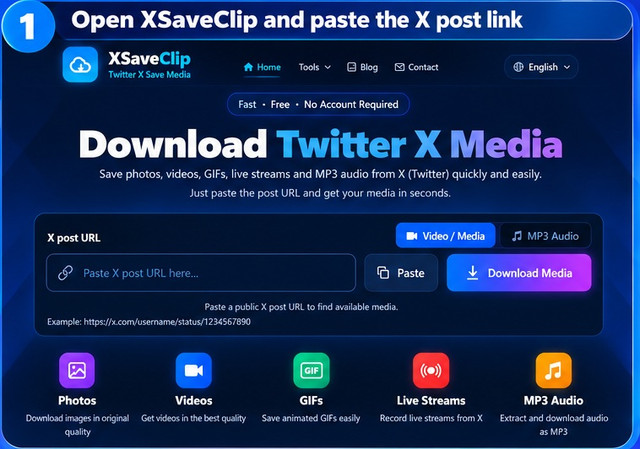
Quick Overview: The 3-Step Process
Downloading a video with XSaveClip takes three simple steps:
- Copy the post link: Open the post containing the video on X and copy its link.
- Paste and download: Visit the XSaveClip Twitter video downloader, paste the link into the input field, and click Download.
- Save your file: Choose one of the available video quality options and save the file to your device.
Available resolutions depend on the original post and the download options the tool returns.
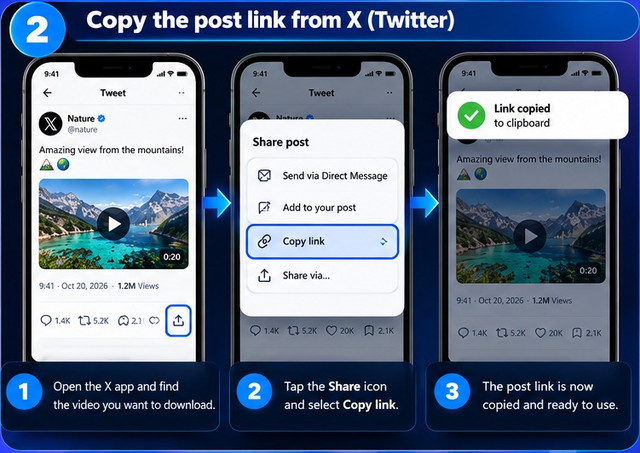
How to Use a Twitter dl Video Downloader on iPhone (iOS)
You can download supported videos on an iPhone using Safari without installing another app.
Step 1: Copy the Post Link from the X App
- Open the X app on your iPhone.
- Find the post containing the video you want to save.
- Tap the Share icon below the post.
- Select Copy link.
The post link is now ready to use in your browser.
Step 2: Download the Video in Safari
- Open Safari and visit the XSaveClip Twitter video downloader.
- Tap the input field and select Paste.
- Tap Download to process the link.
- Choose your preferred resolution from the available options.
- Confirm the download if Safari asks for permission.
Only the formats and resolutions offered for that particular post will be available.
Step 3: Find Your Downloaded Video on iPhone
Safari normally saves downloaded files to the Downloads location configured on your iPhone. To find your video:
- Open the Files app.
- Tap Browse.
- Open the Downloads folder under iCloud Drive or On My iPhone, depending on your settings.
- Find and tap the downloaded video file to play it.
For additional guidance, see Apple’s guide to finding downloads on iPhone.

Tip: Moving a Downloaded Video to Photos
To move the video into the Photos app, open the file in Files and tap Share. Select Save Video if that option is available. If you don't see it, keep the file in Files and check whether Photos supports the video format.
How to Use a Twitter Video Mp4 on Android
On Android, you can download supported videos through Chrome or another compatible web browser.
Step 1: Copy the Post Link
- Open the X app on your Android phone.
- Find the post containing the video.
- Tap the Share icon.
- Select Copy link.
Step 2: Download the Video
- Open Google Chrome or your preferred browser.
- Visit the XSaveClip Twitter video downloader.
- Paste the copied post URL into the input field.
- Tap Download.
- Choose the preferred resolution from the available options and start the download.
Step 3: Locate Your Video
Once the download finishes:
- Tap the download notification if it appears, or open your file manager.
- Open the Downloads folder.
- Find and open your video file.
You can also consult Google’s Android Help for managing downloaded files. Depending on your device and settings, downloaded videos may also appear in your Gallery or Google Photos app.
How to Use a Twitter Video Downloader on PC and Mac
Desktop browsers make it easy to download supported videos and locate the saved files.
Step 1: Copy the Post URL
- Open Chrome, Edge, Firefox, Safari, or another browser.
- Visit X and find the post containing the video.
- Copy the URL from the browser’s address bar, or use the post’s Share menu and select Copy link to post if available.
Step 2: Process and Save the Video
- Open the XSaveClip Twitter video downloader in a new tab.
- Paste the link into the input field using Ctrl + V on Windows or Cmd + V on Mac.
- Click Download.
- Select one of the available video resolutions.
- Save the file when prompted.
Depending on your browser settings, the file will normally be saved to your default Downloads folder, or your browser may ask you where to save it.
How to Download Twitter (X) Live Streams
Live broadcasts on X behave differently from regular video posts. Whether a stream can be downloaded depends on its technical configuration and whether a recording is available.
Active Live Streams vs. Completed Replays
- Active live streams: In our testing, XSaveClip successfully downloaded an ongoing live stream. However, results can vary because live broadcasts use dynamic streaming methods. We cannot guarantee that every active stream will be supported.
- Completed replays: After a live broadcast ends, the host may leave a recording available on the original post. If the replay remains public and X has finished processing it, it may be downloadable like a regular video post.
How to Test a Live Stream or Replay Link
- Copy the link to the live broadcast or completed replay from X.
- Open the XSaveClip Twitter video downloader.
- Paste the URL into the input field.
- Click Download.
- Check whether supported download options appear.
If no options appear, the stream may use an unsupported format, the replay may not be publicly available, or X may still be processing the recording.
Supported Media Types: Videos, GIFs, Images, and Audio
X posts can contain several types of media. The best way to save them depends on what you want to keep.
Standard Videos (MP4)
For supported video posts, XSaveClip provides available download options so you can save a video to your device. The resolutions offered depend on the source post. A low-resolution original cannot be turned into genuine higher-quality footage simply by choosing a larger resolution. Start with the XSaveClip Twitter video downloader.
Animated GIFs
X often delivers animated GIF posts as short, silent video clips. If you want to save the animation as a video, use the XSaveClip Twitter video downloader. If you specifically need a .gif file, use the dedicated Twitter GIF downloader and check the available download options. The output format depends on the options provided by the tool. Before saving, check the file extension to confirm whether the result is an MP4 video or a GIF file.
Static Images
You can often save images from X without a separate downloader. On a computer, right-click the image and select Save image as… if the option is available. On a phone, open the image and check the options in the post menu or share sheet. Depending on your device, browser, and how the image is displayed, you may see an option such as Save image or Save to Photos. If no save option appears, try opening the post in your browser and checking the available image actions. The exact steps vary by device and app version.
Audio Extraction (MP3)
If you only need the audio from a supported video post, you can use the XSaveClip Twitter MP3 downloader. This is useful when you want to listen to speech, commentary, or an interview without keeping the video. Follow the options displayed by the tool to process the link and save the available audio file.

Troubleshooting Common Issues
- The Download Fails or Shows an Error
Several issues can prevent a video from downloading:
- The account is private: Protected posts may require authenticated access that an online downloader cannot provide.
- The post is unavailable: The author may have deleted the post, or access may be restricted.
- The link is incorrect: Make sure you copied the post URL rather than an unrelated profile or page link.
For example, a post URL may look like https://x.com/NASA/status/2112560723603632217/video/1?t=2 If the link is correct and the post is public but the download still fails, try again later.
- The Video Plays Instead of Downloading
Sometimes a browser opens a video in a new tab rather than saving it immediately.
- On desktop: If the browser displays a direct video file, right-click the video and choose Save video as… if available.
- On mobile: Return to the download results and use the available download option. If the browser opens the file instead, check the browser’s download menu.
The exact steps depend on your browser and the way the video is delivered.
- The Downloaded Video Has No Sound
Some videos on X have no audio in the original post, including many animated GIFs and silent clips. If the original video definitely has sound:
- Check that you downloaded the intended version.
- Open the file in another media player, such as VLC, to check whether the issue is related to playback compatibility.
- If you need audio separately, try the XSaveClip Twitter MP3 downloader, provided the post is supported.
Copyright and Fair Use
Before downloading or reusing content, respect the rights of the original creator.
- Content ownership: Creators may retain copyright over their videos, images, and other media. Read the X Copyright Policy for official guidance.
- Permitted use: Copyright laws and exceptions vary by country. Obtain permission or make sure you have a valid legal basis before redistributing, publishing, or repurposing someone else’s content.
- Independent service: XSaveClip is an independent tool and is not affiliated with, sponsored by, or endorsed by X Corp.
Downloading a publicly accessible post does not automatically grant permission to reuse or commercially distribute it.
Frequently Asked Questions (FAQ)
Can I download videos from private X accounts? XSaveClip is intended for supported public posts. Private or protected posts may require access that the downloader cannot provide. What video quality will I get? You can choose from the resolutions available for the specific post. The available quality depends on the source video and the options returned by XSaveClip. Selecting a higher resolution cannot restore detail that was not present in the original upload. Do I need to install any software or browser extensions? No additional software or browser extension is required. You can use XSaveClip through a compatible browser on your phone or computer. Can I download Twitter GIFs as GIF files? XSaveClip provides a dedicated Twitter GIF downloader for animated GIF posts. Open the tool, paste the post link, and check the available download options. If you need a .gif file rather than an MP4 video, confirm that the GIF format is offered before saving. Can I download audio from a Twitter video? For supported posts, use the XSaveClip Twitter MP3 downloader and follow the available options to save the audio. Can I download a live stream from X? In our testing, downloading an active live stream was successful. However, support can vary according to the stream’s configuration. Completed replays may also be downloadable when they remain public and are supported by the tool.
Conclusion
Downloading videos from X is straightforward when you have the correct post link. Whether you use an iPhone, an Android phone, a Windows PC, or a Mac, XSaveClip lets you process supported public posts directly in your browser without installing additional software. Ready to get started? Copy the post link and visit the XSaveClip Twitter video downloader to see the available download options.
SEO Metadata (Do Not Publish as Article Body) Meta title: How to Download Twitter (X) Videos on iPhone, Android & PC Meta description: Learn how to download Twitter (X) videos on iPhone, Android, and PC. Save high-quality MP4 files in your browser with XSaveClip—no extra apps needed. Suggested slug: how-to-download-twitter-videos Canonical URL: Use the exact published article URL and match the site's trailing-slash convention. Suggested if trailing slashes are used: https://xsaveclip.com/blog/download-twitter-videos Verified External References